How to Choose a USB-C Laptop Charger
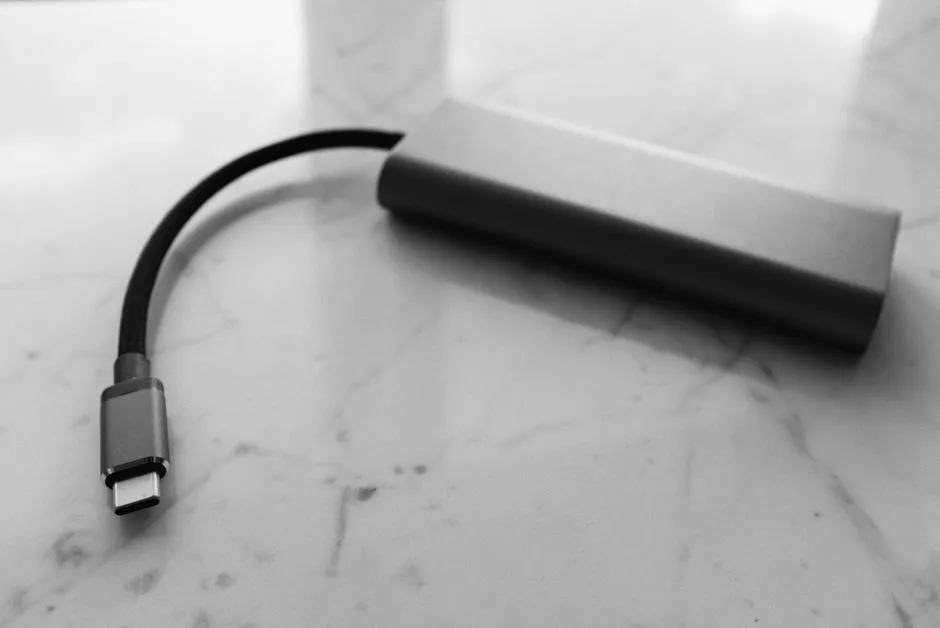
Match four parts, not one wattage sticker
Choose a USB-C laptop charger by matching the laptop's documented USB Power Delivery input, the charger's supported output profiles and total power, the cable's power rating, and the wall outlet or travel adapter. Start with the device manufacturer's specifications and recommended charger. A USB-C connector alone does not prove that a port accepts charging or that a cable carries the required power.
Best default: a reputable USB PD charger that meets the laptop maker's stated input requirement, paired with a certified cable rated for that power.
Best travel setup: the same compatibility, plus documented input voltage, a suitable plug adapter, and enough output when all ports are occupied.
Best for several devices: a multiport charger whose per-port and shared-power rules cover the worst realistic combination—not merely the handsome total printed in the largest typeface.
Compare the common options
| Charger route | Best for | Why it works | Worth knowing |
|---|---|---|---|
| Manufacturer-supplied charger | Lowest compatibility uncertainty | Designed and documented for the device | May be larger or less flexible |
| Certified single-port USB PD charger | One laptop at a time | Full output is simpler to understand | Cable usually needs separate verification |
| Multiport USB PD charger | Laptop, phone, and accessories | Consolidates wall adapters | Output can change as ports are added |
| Monitor or dock power delivery | Desk setups | One cable may power and connect | Available laptop power may be below its maximum need |
| Battery power bank with USB PD | Mobile use where permitted | Adds off-outlet runtime | Airline, capacity, and port-output rules require checking |
This guide does not recommend a specific product or claim compatibility with an unnamed laptop. The correct choice lives in the manuals, labels, and support pages for the exact model and hardware revision.
Read the laptop requirement first
Find the manufacturer's input specification for the charging port. Record whether the port accepts USB PD, the recommended power, and any supported voltage-current profiles the documentation provides. Some computers have several USB-C ports but charge through only certain ones. Others can accept lower power while running slowly, warning, reducing performance, or continuing to drain under load.
Do not adapt USB-C power into a proprietary barrel input unless the laptop maker explicitly supports that method. An adapter that physically fits can still present the wrong voltage, polarity, signaling, or current path.
If the original charger uses a proprietary connector, treat a USB-C replacement as unsupported until the exact manufacturer documentation says otherwise.
More compatibility checks live in Portable Power.
Check charger profiles and shared output
USB Power Delivery lets compatible devices and power sources negotiate power. The USB Implementers Forum's USB Power Delivery overview describes flexible power delivery up to 240 W under USB PD 3.1, but that standard maximum says nothing about what a particular charger, cable, or laptop supports.
Read the charger's output table, not only its advertised total. Confirm that one relevant port can supply a profile accepted by the laptop. On a multiport model, inspect the diagram for every planned port combination. A “140 W charger” might allocate power differently when a phone or tablet joins. The arithmetic must use the per-port split in that state.
Do not assume more advertised watts will force more power into a correctly implemented USB PD device; negotiation governs delivery. Still, follow the manufacturer's compatibility guidance and avoid counterfeit, damaged, modified, or uncertified power equipment. Stop using anything that becomes unusually hot, smells burnt, crackles, sparks, or has loose or exposed parts, and disconnect power safely.
Give the cable its own audition
The charger and laptop can agree beautifully while an underrated cable stands between them wearing the expression of an innocent bystander. Check the cable's marked power capability and certification, its connectors, length, condition, and whether it is intended for charging only or also data and video.
USB-IF's current cable and connector guidance says certified USB-C-to-USB-C cables are marked with a 60 W or 240 W power capability; certified non-USB-2.0 cables also display supported data rate. Verify certified products in the USB-IF listing when that status matters. A marketplace title using “certified” as an adjective is not the same as a matching certification record.
A higher-rated cable does not make the charger produce power it lacks. Use the lowest capability in the chain: laptop acceptance, charger port, cable, and any dock or adapter.
Account for monitors, docks, and hubs
A monitor may advertise laptop charging while supplying less than the laptop's preferred adapter. A dock may reserve some input for itself and connected devices before passing power onward. Read upstream input and downstream power-delivery specifications separately.
If a one-cable desk setup will also carry video, the host port and cable need the appropriate display capability. The USB-C monitor troubleshooting guide explains why successful charging does not prove the same cable path supports video.
Travel without improvising mains power
Confirm the charger's accepted AC input range on its label or official documentation. A plug adapter changes physical fit; it does not convert voltage. Use a certified, undamaged adapter appropriate to the destination and load. Follow local electrical rules, accommodation guidance, and airline battery restrictions.
Before relying on the setup, test the laptop, charger, cable, and all simultaneously connected devices under normal load. Check the operating system's charging state and observe whether the battery rises, holds, or falls. That boring rehearsal is much more enjoyable than discovering the attractive travel charger negotiates only with your toothbrush.